
Steps to Access Bookmarks
-
Open Edge Browser
Launch the Microsoft Edge app on your mobile device. -
Open the Burger Menu
Tap on the Menu (≡) in the top right corner.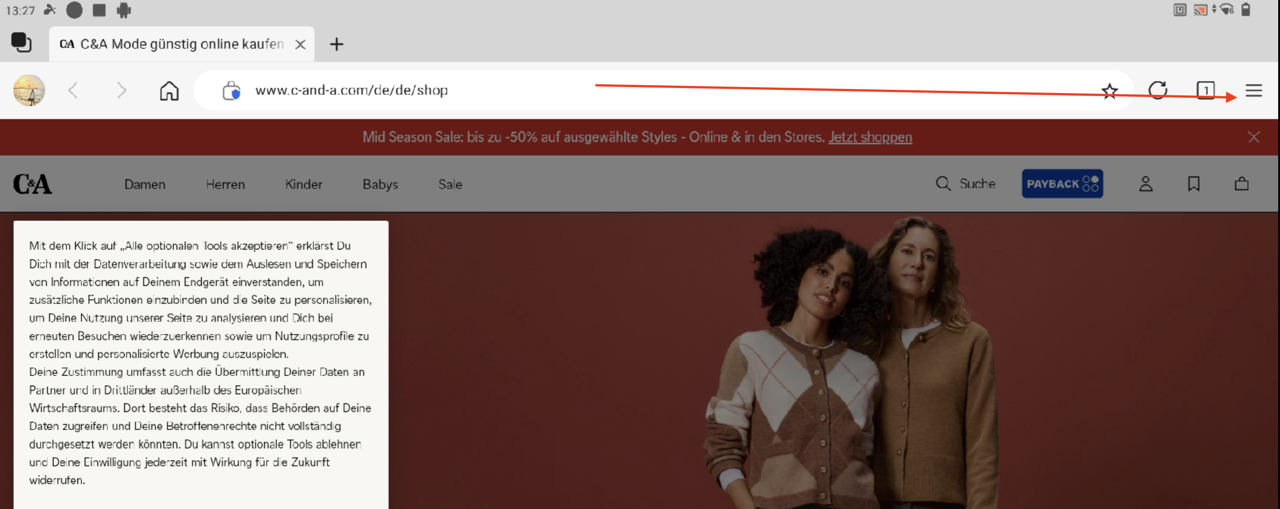
-
Go to Collections
From the menu, select Collections.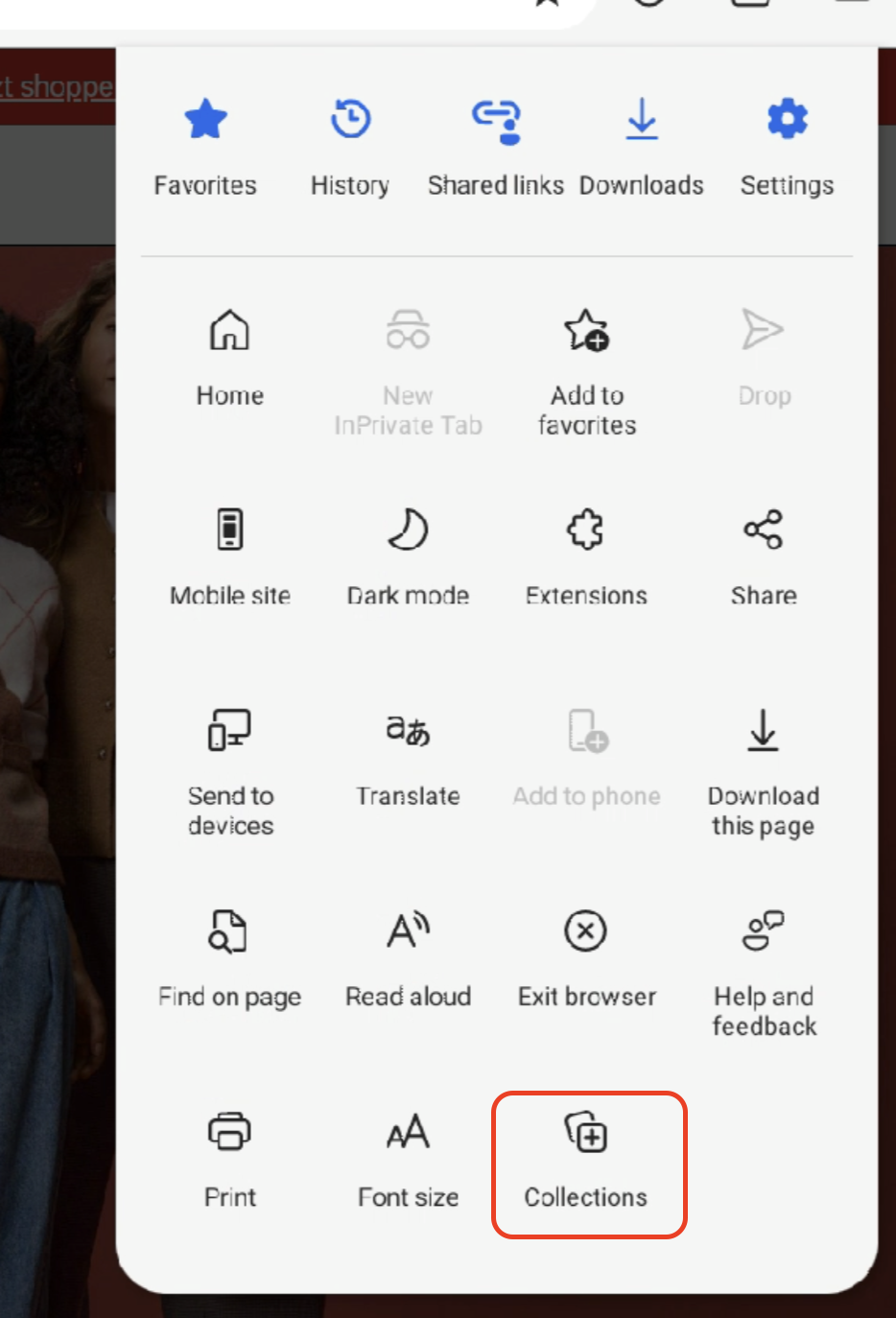
-
Access Favorites
Tap the Star icon (★) and then choose Favorites Bar.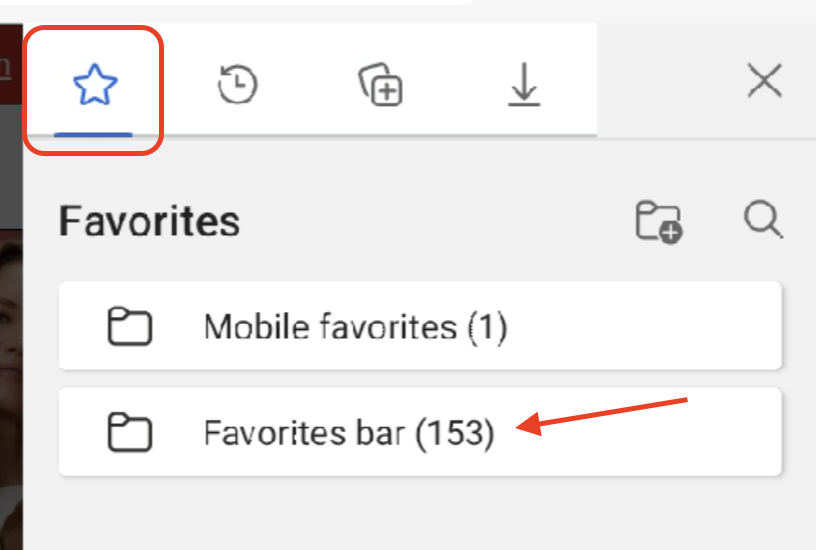
-
Access Your PC Bookmarks
Now you can reach all your bookmarks synced from your PC.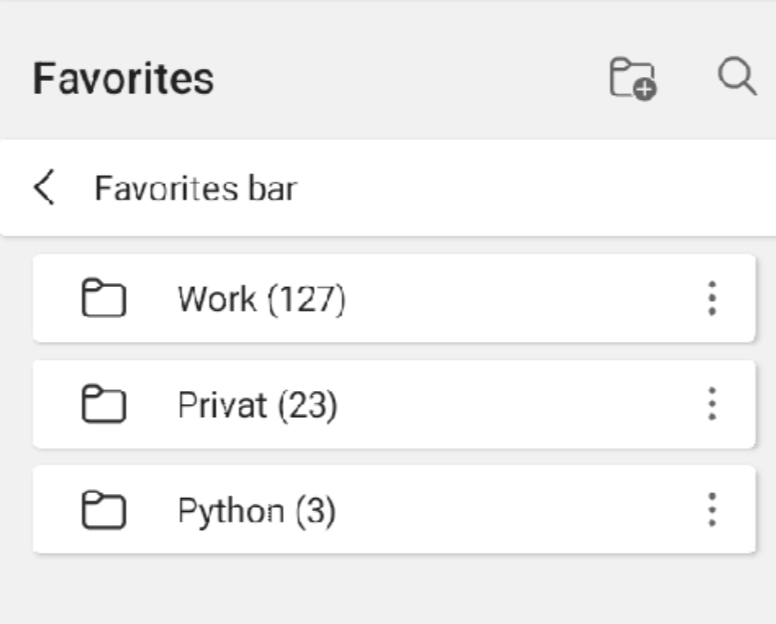
Note
As of now (Android / iOS), Microsoft Edge Mobile does not provide the option to permanently display a favorites or bookmarks bar below the address bar — as you might know from the desktop version.
In the mobile versions, there is currently no official setting available in the stable releases to make such a bar permanently visible.